How to transfer data to a new iPhone: the right method, the cable you need and Apple's free iCloud space
Quick Start, cable or backup? Which to use, the cable for Lightning-to-USB-C upgrades, and Apple's 21-day free iCloud storage for new iPhones.

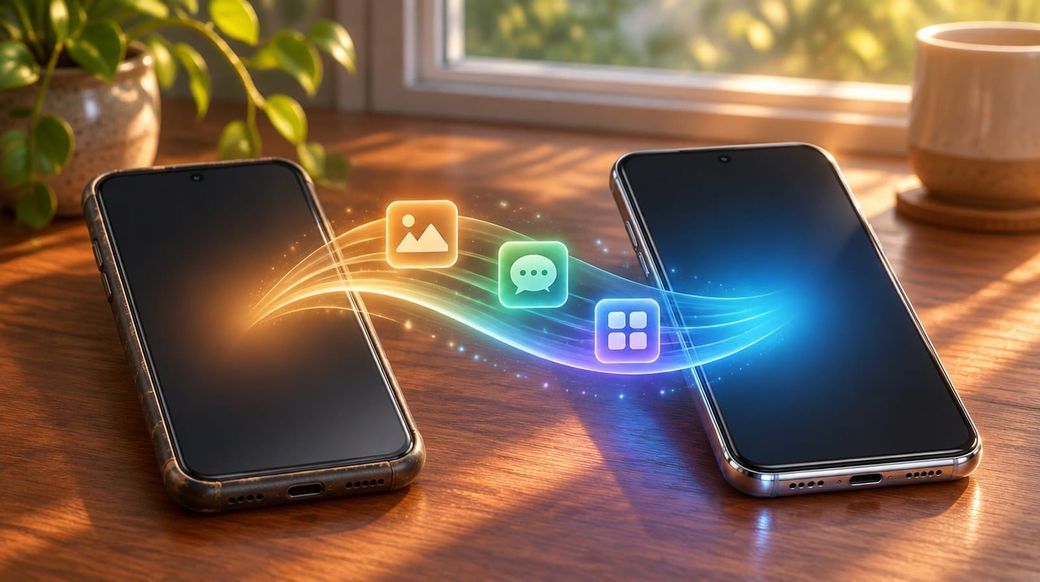
To transfer data to a new iPhone, you have four Apple-supported routes: Quick Start over Wi-Fi, a direct cable, an iCloud backup or a backup on your computer. They don't all move the same things, and some need a specific cable. We checked each method against Apple's own support pages on Nov. 22, 2026, so you can pick the right one before you unbox.
The quick answer
Update your old iPhone, turn on Bluetooth and Wi-Fi, then turn on the new iPhone and set it next to the old one. Quick Start pops up on the old phone; follow the prompts, then choose Download from iCloud (use the new phone right away) or transfer directly (wait for it to finish). Not enough iCloud space? Apple gives new-iPhone buyers free temporary storage for 21 days.
Which way should you transfer data to a new iPhone?
We pulled the requirements from six Apple Support articles into one table. Apple doesn't publish speed comparisons, so we haven't ranked them on speed.
| Method | What you need | Can you use the new iPhone during transfer? | Best for |
|---|---|---|---|
| Quick Start, Download from iCloud | Old iPhone on iOS 11 or later, Wi-Fi and Bluetooth; data comes down from iCloud | Yes. Apple says apps and data download in the background | Most people; anyone who wants the phone working fast |
| Quick Start, transfer directly | Both phones side by side, plugged in | No. Both phones are tied up until it finishes | Not enough iCloud space and no time for a backup |
| Wired connection | The right cable or adapter (see below) | No. Wait on both devices | Spotty Wi-Fi at home |
| iCloud backup restore | A recent iCloud backup and Wi-Fi | Only after the restore finishes | Old phone is lost, broken or already traded in |
| Mac or PC backup restore | Mac (macOS Catalina 10.15+) with Finder, or Windows 10+ with the Apple Devices app | No. Keep it connected until the sync finishes | Huge photo libraries and people who don't pay for iCloud+ |
One limit: Apple says if the new iPhone is enrolled in Apple School Manager or Apple Business (a work or school phone), Quick Start can't move data from your current device.
How do you transfer data to a new iPhone with Quick Start?
These steps follow Apple's Quick Start support article (updated Nov. 17, 2026). Quick Start ties up both phones for several minutes or more, so pick a time when you won't need your old one.
- Update the old iPhone. Apple says to update both devices to the latest iOS first (here's how to update an iPhone).
- Let iCloud catch up. If you recently changed anything that syncs with iCloud, check it shows up on iCloud.com or another device before you begin.
- Turn on Wi-Fi and Bluetooth on the old iPhone, unlock it and go to the Home Screen.
- Turn on the new iPhone and set it next to the old one. Follow the prompt on the old phone. If it disappears, Apple says to restart both devices.
- Connect the new iPhone to Wi-Fi or cellular. You may be asked to activate your cellular service (see the eSIM section below).
- Set up Face ID or Touch ID.
- Choose how to transfer: Download from iCloud, or transfer directly from your old iPhone.
- Keep both phones close and plugged in until the migration finishes.
Which cable do you need to transfer data to a new iPhone?
From Apple's wired transfer article:
| From | To | What Apple says to use |
|---|---|---|
| iPhone 15 or later | iPhone 15 or later | USB-C Charge Cable between both charging ports |
| iPhone 14 or earlier | iPhone 15 or later | USB-C to Lightning Cable |
| iPhone 14 or earlier | iPhone 14 or earlier | Lightning to USB 3 Camera Adapter, a Lightning to USB Cable and a 12W or higher power adapter powering the adapter |
Then turn on both phones, follow the onscreen steps, connect to Wi-Fi or cellular and set up Face ID or Touch ID. The case that catches people out is upgrading from a Lightning iPhone (iPhone 14 or earlier) to a USB-C one: you need the USB-C to Lightning cable, not a USB-C to USB-C cable.
How do you get free iCloud storage for a new iPhone?
If your iCloud plan is too small to back up your old phone, Apple's temporary iCloud storage program covers the gap. On the old iPhone:
- Open Settings > General > Transfer or Reset iPhone.
- Under Prepare for New iPhone, tap Get Started.
- If you see "iCloud Backup is Turned Off," tap Turn On Backup to Transfer.
- If you're eligible, you'll see a free extra iCloud storage message. Tap Continue and wait for the backup to finish.
The clock: you have 21 days to restore it to the new iPhone. If a holiday delivery slips, tap Keep My Backup Longer in Settings on the old phone for another 21 days. After you restore, the backup stays for 7 days and is then deleted. Apple's warning: don't erase the old iPhone until the restore is done. If a new iPhone is on your Black Friday list, you can start this before it arrives.
How do you move your phone number and eSIM?
Per Apple's eSIM article (updated Nov. 18, 2026), eSIM Quick Transfer moves your number without calling your carrier if the carrier supports it. Both iPhones need iOS 18.4 or later, the same Apple Account and Bluetooth on, and the old phone must be unlocked. You may be asked during setup. Later, it's Settings > Cellular > Set Up Cellular (or Add eSIM) > Transfer From Nearby iPhone. On iOS 26 or later you can move more than one number. When the new plan activates, the old phone's SIM stops working, so finish this last if you still need the old phone online. If you'd rather keep both phones live on one number, that's a different feature: iPhone Handoff.
What doesn't come across in a backup?
Apple's backup methods page lists what's left out. iCloud backups skip anything already syncing to iCloud, such as iCloud Photos and Messages in iCloud, because those download separately. They also skip Face ID or Touch ID and Apple Pay settings. Computer backups leave out Activity, Health and Keychain data unless you turn on an encrypted backup. Expect to set up Face ID again and re-add your Wallet cards.
Switching from Android?
On the new iPhone's Transfer Your Apps & Data screen, tap From Android and use the Move to iOS app, per Apple's Move from Android article. Apple says some phones on a compatible version of Android 17 can skip the app.
What should you do with your old iPhone?
Once everything's on the new phone, follow Apple's checklist for selling, gifting or trading in: unpair an Apple Watch, sign out of your Apple Account (on iOS 26 or later, Settings > your name > Sign Out), then Settings > General > Transfer or Reset iPhone > Erase All Content and Settings. If you're selling it, choose to erase the eSIM too. If your phone number is changing, add a trusted phone number to your Apple Account first so you don't get locked out of two-factor codes.
Troubleshooting
- The Quick Start prompt never appears or disappears. Restart both iPhones, check Bluetooth is on and keep them side by side.
- "Not enough iCloud storage." Use Prepare for New iPhone (above) instead of paying for a bigger plan just to move.
- The new iPhone is already set up. Apple says to erase it before restoring from a backup.
Related: setting up a new iPad mini with Quick Start, moving to a new Mac with Migration Assistant, setting up passkeys and this year's Apple Black Friday gift-card offers. More guides on the How-To hub.
FAQ
Can I use my new iPhone while data transfers?
Only with Quick Start's Download from iCloud option, which Apple says lets apps and data download in the background. Transferring directly from your old iPhone or over a cable ties up both phones until it's done.
Do I need a cable to transfer data to a new iPhone?
No. Quick Start works wirelessly. A cable is optional, and the type depends on whether each iPhone has Lightning or USB-C.
How long does Apple keep the free temporary iCloud backup?
21 days, plus another 21 if you tap Keep My Backup Longer. After you restore, it's deleted 7 days later.
Will my texts and photos transfer?
Yes, with Quick Start or a backup. If you use iCloud Photos or Messages in iCloud, those sync from iCloud instead of the backup, so stay signed in to the same Apple Account and on Wi-Fi.
How we checked: this guide follows Apple Support articles read Nov. 22, 2026. We didn't run a transfer for this article, and timings depend on your network and how much data you have. Sources: Quick Start (Nov. 17, 2026), wired transfer, restore from a backup (Oct. 12, 2026), temporary iCloud storage (Sept. 23, 2026), eSIM (Nov. 18, 2026), backup methods (Oct. 20, 2026), Move from Android (Oct. 28, 2026) and before you sell or give away (May 29, 2026).