How to set up passkeys on iPhone, Android and Windows (and never get locked out)
Passkeys replace passwords and can't be phished. Step-by-step setup for iPhone, Google and Windows, plus backups and switching managers.
The skim
- A passkey replaces your password with a key that's stored on your phone, computer or password manager. You unlock it with your face, fingerprint or device PIN.
- Passkeys can't be phished. Each one is tied to the real website it was made for, so a fake look-alike site can't use it. There's also nothing to reuse, leak or type into a scam page.
- Start with your most important accounts: your Google, Apple and Microsoft accounts, then your password manager, email, bank and shopping accounts.
- Pick one place to keep them, such as iCloud Keychain, Google Password Manager or a manager like 1Password or Bitwarden. Then always have a backup way in: a second device or a hardware security key.
- Switching managers is now possible. On iOS 26, and on Android 14 or later with an up-to-date Google Play Services, passkeys can move between compatible managers through an encrypted transfer.
Steps checked against Apple, Google, Microsoft and FIDO Alliance-member documentation on Oct. 24, 2026. Menus vary by app and version. Skimwire may earn a commission from links in this guide. As an Amazon Associate, Skimwire earns from qualifying purchases. That never decides what we recommend.
What is a passkey?
A passkey is a sign-in method built on a public industry standard (FIDO2/WebAuthn) that Apple, Google and Microsoft all support. When you create one, your device makes two linked keys. The private key stays on your device or in your password manager. The public key goes to the website. When you sign in, your device uses the private key to answer a one-time challenge from the site, and the site checks the answer with the public key. Microsoft's explainer walks through it in plain terms.
Why that matters:
- There's no secret for a website to leak. A breached site holds only public keys, which are useless to an attacker.
- Phishing doesn't work. A passkey made for netflix.com only works on netflix.com. Your device won't offer it to a look-alike site.
- Your face or fingerprint never leaves your device. It only unlocks the passkey on your device. Google and Microsoft both say biometric data isn't sent to them.
- It counts as two factors. You need the device (something you have) and your face, fingerprint or PIN (something you are or know).
Before you start: pick where your passkeys will live
A passkey is saved in a credential manager. Pick one and stick with it, so your passkeys follow you to every device.
| If you use… | Good default home for passkeys | Syncs to |
|---|---|---|
| iPhone, iPad and Mac only | Apple Passwords (iCloud Keychain) | Your Apple devices signed in to the same Apple Account |
| Android and Chrome | Google Password Manager | Android devices and Chrome where you're signed in to Google |
| Windows and Edge | Microsoft Password Manager (Edge 142 or later, personal profile) | Your devices signed in to the same Microsoft account |
| A mix of all three | A cross-platform manager such as 1Password, Bitwarden or Dashlane | iPhone, Android, Windows and Mac through the manager's app and extension |
Minimum requirements, according to Google and Microsoft: Windows 10, macOS Ventura, ChromeOS 109, iOS 16 or Android 9 or later, and a current browser (Chrome, Edge 109+, Safari 16+, Firefox 122+). Turn on your device's screen lock. On Apple devices, iCloud Keychain and two-factor authentication must be on.
How to set up a passkey on iPhone, iPad or Mac
From Apple's iPhone User Guide:
- Sign in to the website or app with your password as usual, then open its account or security settings. (For a new account, choose the sign-up option.)
- When you see the option to create or save a passkey, tap Continue.
- Confirm with Face ID, Touch ID or your passcode. The passkey is saved in the Passwords app and syncs through iCloud Keychain.
Signing in: tap the username field, pick the suggested account and confirm with Face ID or Touch ID. On someone else's computer: choose "Other options" or "Passkey from nearby device" on the sign-in screen, then scan the QR code with your iPhone camera.
To save passkeys to 1Password, Bitwarden or another manager instead, install it and turn it on under Settings › General › AutoFill & Passwords, then pick it when you're asked where to save.
How to add a passkey to your Google account (Android or any device)
- Go to myaccount.google.com/signinoptions/passkeys and verify it's you.
- Choose Create a passkey and follow the prompts. Your phone's screen lock (fingerprint, face or PIN) protects it.
- Next time you sign in, enter your username and approve with your screen lock. On a computer, choose Try another way › Use your passkey and scan the QR code with your phone (Bluetooth must be on).
Things Google's help page points out:
- Only create passkeys on devices you own. Anyone who can unlock that device can get into your Google account.
- A passkey skips your 2-Step Verification code, because using the device already proves it's you.
- A new passkey can take up to 7 days before it's offered at sign-in.
- If you'd rather enter your password first, turn off Skip password when possible under Security & sign-in.
- Lost a device? Sign it out under Security & sign-in › Your devices.
How to use passkeys on Windows and with a Microsoft account
On Windows 11, a passkey is unlocked with Windows Hello: your PIN, fingerprint or face. To add one to your Microsoft account, accept the "Sign in faster with your face, fingerprint or PIN" prompt when you sign in, or add a passkey from your account's security settings. Microsoft's passkey guide has the details. On other sites, accept the "Create a passkey?" prompt.
Microsoft recommends saving passkeys to a synced manager so they reach your other devices. If you keep a passkey only on one PC (a "device-bound" passkey), create passkeys on your other devices too, as spare keys. Work or school PCs may restrict these options.
Don't get locked out: set up a backup
- Keep two ways in for every important account. That could be a passkey on your phone and one on your laptop, or a synced manager plus a hardware key. Adding a passkey doesn't remove your password or recovery options, so check those are still up to date.
- Protect the account that syncs everything. Your Apple Account, Google account or password manager is now the key to every other key, so use a strong account password and up-to-date recovery options.
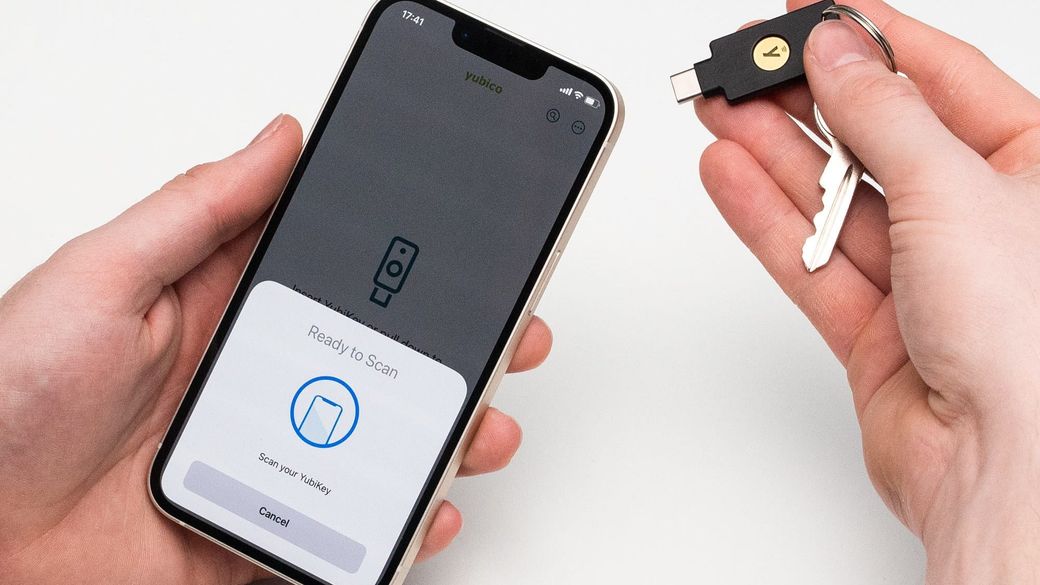
- Think about a hardware security key for your most valuable accounts (email, password manager, bank). It's a small USB-C/NFC key that stores passkeys offline. Register two keys, one to carry and one to keep at home as a spare.
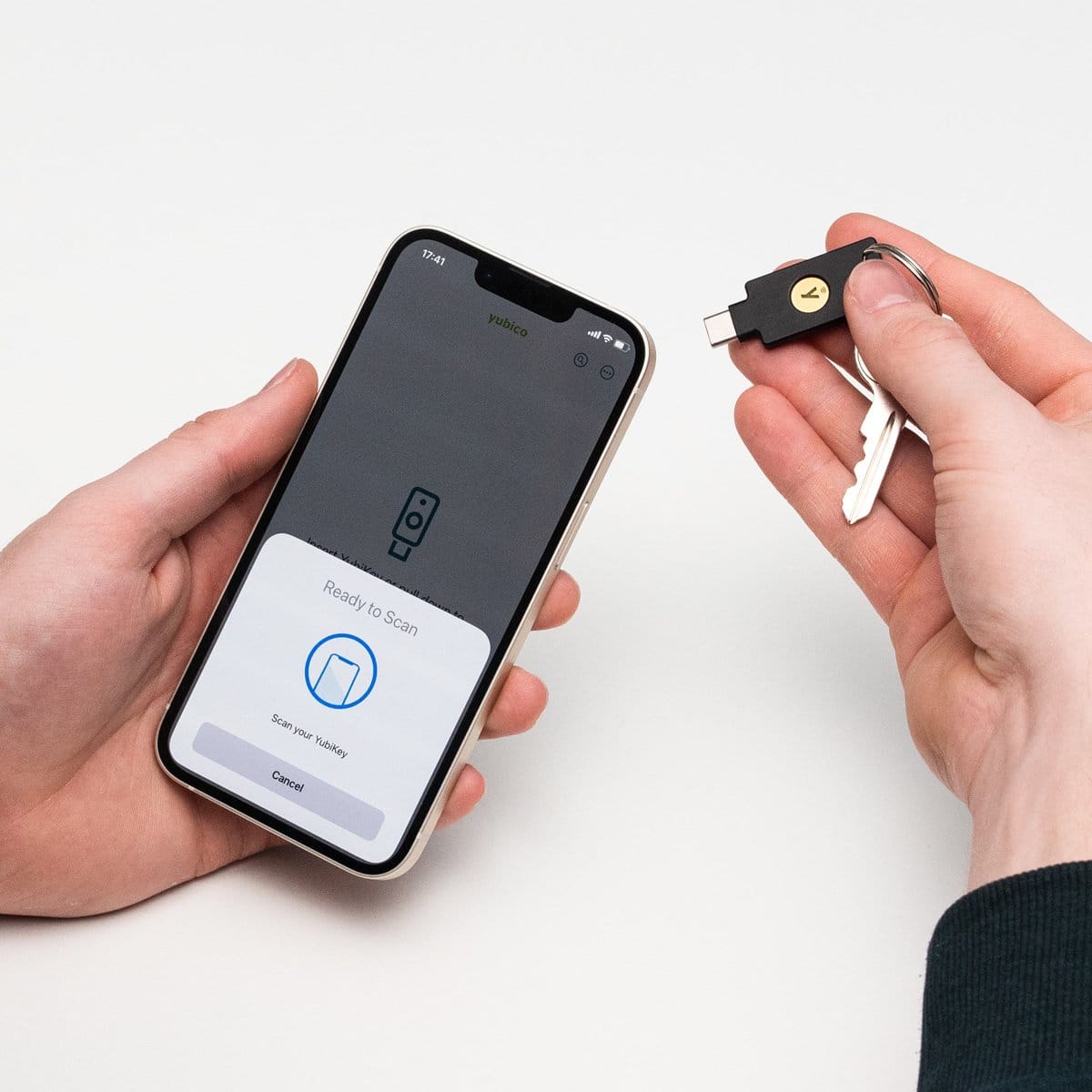
Two good keys (prices from Yubico's store, checked Oct. 24, 2026):
- Yubico Security Key C NFC, $29. It supports FIDO2/WebAuthn and U2F only, which is all most people need for passkeys. It stores up to 100 passkeys, works over USB-C or by tapping it on an NFC phone, and is rated IP68. Yubico Security Key C NFC on Amazon.
- YubiKey 5C NFC, $58. It adds one-time codes (OTP and OATH), smart card (PIV) and OpenPGP for work and developer setups, and also stores up to 100 passkeys. YubiKey 5C NFC on Amazon.
How to move passkeys to a different password manager
Moving passkeys used to mean starting over. The FIDO Alliance's new Credential Exchange Protocol (CXP) now lets you move passwords and passkeys between compatible managers in an encrypted transfer, with no plain-text export file. Its backers include Apple, Google, Microsoft, 1Password, Bitwarden, Dashlane, NordPass and Samsung.
- On iPhone (iOS 26 or later): start in the app you're leaving and choose Export Data to Another App or similar. Apple introduced this in the Passwords app.
- On Android (Android 14 or later, Google Play Services 26.21 or later): start the import from the app you're moving to. Bitwarden says Android support arrived in July 2026.
- A few passkeys can't move. According to Bitwarden, passkeys that use a hidden security counter can't be transferred. Re-create those on the new manager.
Key facts
Are passkeys safer than passwords?
Yes. A passkey can't be phished, guessed or reused, and websites store only a public key, which is useless if the site is breached. Microsoft counts a passkey as multi-factor authentication.
What happens if I lose my phone?
If your passkeys are synced (iCloud Keychain, Google Password Manager or a password manager), they're on your other devices and come back when you sign in on a new phone. Remove the lost device from your account. Passkeys kept only on one device are lost with it, which is why you need a backup.
Can I use a passkey on someone else's computer?
Yes. Choose the option to use a passkey from a nearby device, then scan the QR code with your phone. Bluetooth confirms that your phone is actually nearby.
Do passkeys work across iPhone, Android and Windows?
Yes. They're an open standard, and you can sign in on one platform with a passkey from another by scanning a QR code. For everyday syncing across all three, use a cross-platform manager such as 1Password or Bitwarden.
Does a passkey replace my password completely?
Not always. Many sites keep your password as a fallback, and adding a passkey to a Google account doesn't remove your existing sign-in or recovery methods. Keep a strong, unique password in your manager for those accounts.
Do I need a hardware security key?
Most people don't. Phone and password-manager passkeys are enough. A key like the $29 Yubico Security Key C NFC is a cheap, offline backup for your email, password manager and financial accounts.
Sources
- Apple: Use passkeys to sign in on iPhone; What's new in passkeys (WWDC25)
- Google: Sign in with a passkey instead of a password
- Microsoft: What are passkeys and why they matter
- Bitwarden: Credential Exchange Protocol on iOS and Android (updated July 23, 2026)
- Yubico: Security Key C NFC and YubiKey 5C NFC specs and prices
Related on Skimwire: 1Password now lets AI agents sign in without seeing your passwords · Railway breach: rotate your keys · Best Bluetooth trackers in 2026