How to transfer everything to a new Mac with Migration Assistant
Open Migration Assistant on both Macs, match the security code and pick what to move. Steps from Apple, plus fixes if your old Mac won't show up.

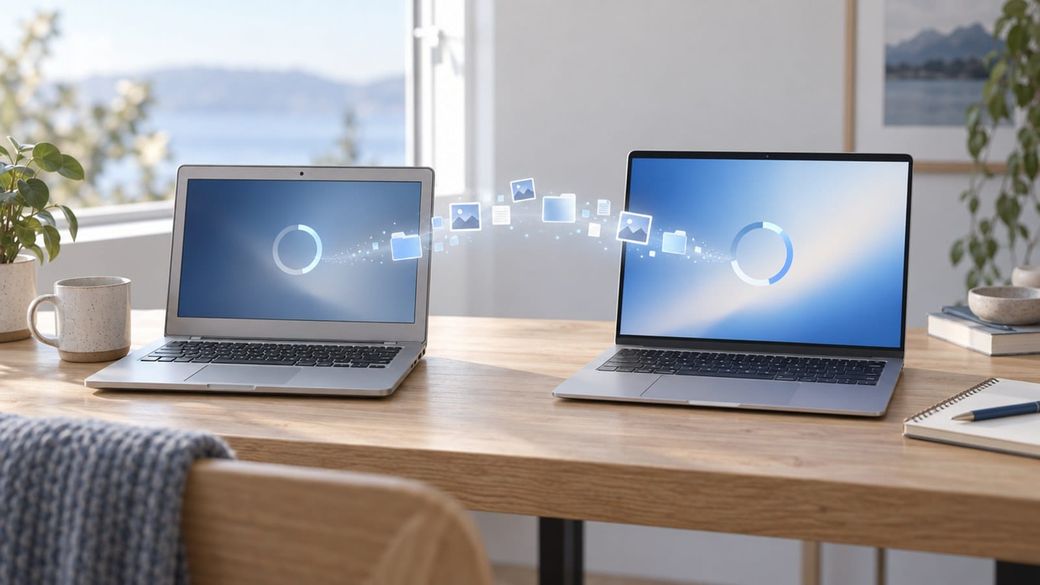
Quick answer: Put both Macs near each other with Wi-Fi on, open Migration Assistant on each (it's in Applications > Utilities, or part of setup on a brand-new Mac), choose to transfer from a Mac on the new one and to another Mac on the old one, match the security code, then pick what to move.
The skim
- Migration Assistant copies your documents, apps, user accounts and settings to a new Mac. It doesn't delete anything from your old Mac, according to Apple.
- The two Macs don't need to run the same version of macOS, but Apple says both should be up to date.
- Apple's new MacBook Pro with PROLED XDR Display, M6 MacBook Pro, iMac and iPad mini go on sale Friday, Nov. 6, so this is the guide to bookmark if one is headed your way.
Before you start
- Update macOS on both Macs. Choose Apple menu > System Settings, click General in the sidebar, then click Software Update, per Apple's update guide.
- Turn on Wi-Fi on both and keep them close. If either Mac uses OS X El Capitan or earlier, or you're not sure, connect both to the same Wi-Fi network.
- Pause antivirus, firewall or VPN software on either Mac until the transfer is done.
- Plan for time. Apple says large transfers can take hours and might seem to pause now and then.
How to transfer to a new Mac with Migration Assistant
- On your new Mac: If it starts up to the setup assistant, which asks for details like your country and network, skip to step 2: migration is part of that setup. If you've already finished setup, open Migration Assistant from the Utilities folder inside Applications, or find it with Spotlight. Enter your administrator password if asked.
- On your new Mac: When asked how you want to transfer your information, select the option to transfer from a Mac, Time Machine, or startup disk. Click Continue.
- On your old Mac: Open Migration Assistant and click Continue. When asked how you want to transfer, select the option to transfer to another Mac. Click Continue.
- On your new Mac: When asked to select a Mac, Time Machine backup or other startup disk, select your old Mac's icon. Click Continue.
- On your old Mac: If you see a security code, make sure it matches the code on your new Mac. Click Continue.
- On your new Mac: Wait while Migration Assistant calculates how much space your apps, user accounts, files and settings use.
- Select the checkbox next to each category you want to transfer, or click the disclosure arrow to choose specific items. Click Continue.
- If you're moving an administrator account, click Set Password and create a password you'll remember. A standard account gets a temporary password on screen; write it down.
- When the transfer finishes, quit Migration Assistant on both Macs and log in to the migrated account on your new Mac.
If an account with the same name already exists
Apple says you'll be asked to either replace the account on the new Mac with the one from your old Mac (you may be able to keep a copy of the replaced account's data in the Deleted Users folder) or rename the old account so both exist and you can log in to each separately.
Other ways to transfer
- From a Time Machine backup: connect the backup disk, open Migration Assistant, choose the Mac, Time Machine or startup disk option, then select your backup disk and a backup. See Apple's guide.
- From a Windows PC: Migration Assistant can also move files from a PC. Apple has separate steps for that.
Troubleshooting
- The new Mac doesn't see the old one: check that Wi-Fi is on for both and they're close together, put them on the same network if the old Mac runs El Capitan or earlier, and turn off any antivirus, firewall or VPN software.
- It looks stuck: large transfers can take hours and can seem to pause. Give it time before canceling.
- Mail is empty or asks to sign in: Apple says Migration Assistant moves your email, but you might need to set up your email account again in your mail app.
After the move: wipe your old Mac before selling it
If you're selling, giving away or trading in the old Mac, Apple recommends resetting it to factory settings. On a Mac with Apple silicon or the Apple T2 Security Chip running macOS Monterey or later, use Erase All Content and Settings. Apple's checklist covers older Macs too.
FAQ
Does Migration Assistant delete files from my old Mac?
No. Apple says it doesn't delete information from your old Mac or replace macOS on your new one.
Do both Macs need the same macOS version?
No, but Apple recommends updating each Mac to its latest available macOS first.
How long does it take?
It depends on how much you're moving. Apple says large transfers might take hours.
Can I set up the new Mac first and migrate later?
Yes. Open Migration Assistant from Applications > Utilities at any time. If an account with the same name already exists, you'll choose whether to replace or rename it.
Sources: Apple Support: Transfer to a new Mac with Migration Assistant, Update macOS on Mac, Restore your Mac from a backup, What to do before you sell, give away, trade in, or recycle your Mac.