How to share iCloud Drive files with only the people you choose on iPhone
In Files, tap Share > Share a Link and pick People you choose. Plus how to switch old public links and stop sharing.

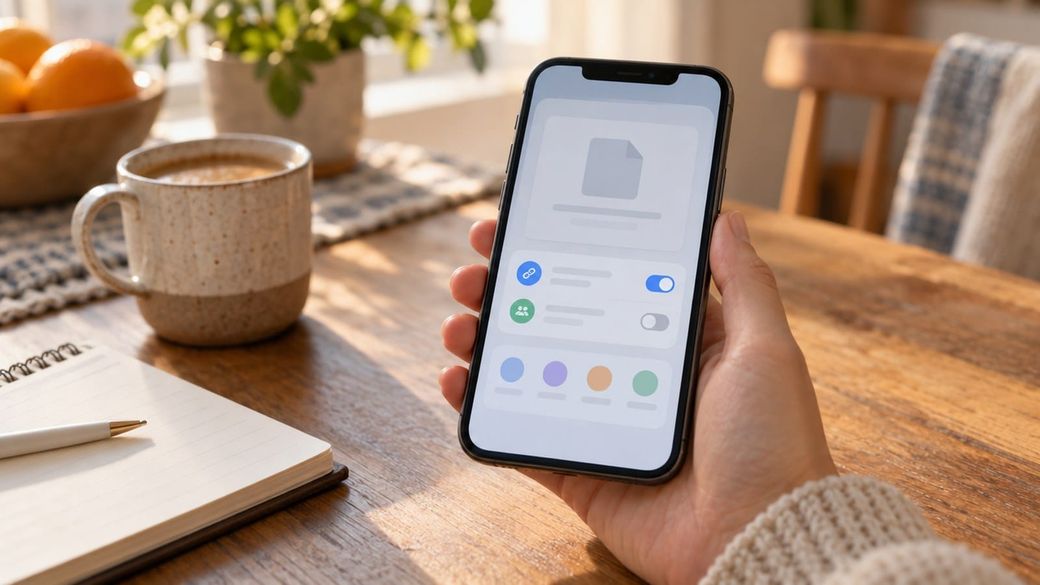
Quick answer: In the Files app, touch and hold the file or folder, tap the Share button, tap the menu under the item's title, then tap Share a Link. Tap "People you choose can edit," make sure "People you choose" is selected, and then send the invitation. Only the people you invite can open it.
Apple says that from iOS 27.3, items shared with "Anyone with the link" will be checked for harmful content and aren't end-to-end encrypted (here's what's changing). Here's how to keep private files private, and how to switch links you've already shared. The steps come from Apple's iPhone User Guide for iOS 27.
Before you start
- Device and version: an iPhone with iCloud Drive turned on. These steps follow Apple's iPhone User Guide for iOS 27, and menu names may differ on older versions.
- You must own the item. Only the owner can change who has access or stop sharing.
- The link shows the file name. Apple warns that a shared file's link includes its name, so rename anything with a sensitive name before you share it.
How to share a file or folder with only the people you choose
- Open the Files app and go to the file or folder in iCloud Drive.
- Touch and hold the file or folder.
- Tap the Share button, tap the menu under the item's title, then tap Share a Link.
- Tap "People you choose can edit" to open the access options.
- Tap "People you choose." If you want, turn on Access Requests, which lets someone else who gets the link ask you to approve them.
- Under New Participants Can, choose whether people can edit or only view and download.
- Choose how to send the invitation, such as Messages or Mail.
Don't need to collaborate? Use Send a Copy instead. Touch and hold the item, tap the Share button, tap the menu under the title, then tap Send a Copy. The other person gets their own copy and no live link.
How to change an existing public link to "People you choose"
- In the Files app, touch and hold the shared file or folder.
- Tap Manage Shared File or Manage Shared Folder, then tap Sharing Options.
- Change Access to "People you choose."
Apple says that when you switch from "Anyone with the link" to "People you choose," the original link stops working for everyone. Only people who get a new invitation from you can open the item, so re-invite anyone who still needs it.
How to add people or remove one person
- Add someone: in Files, tap Shared, touch and hold the item, tap Manage Shared File or Manage Shared Folder, tap Add Participant, then choose how to send the link.
- Change or remove one person: touch and hold the item, tap Manage Shared File or Manage Shared Folder, tap the person's name, then choose an option. This works when access is set to "People you choose."
How to stop sharing completely
- In Files, go to the item, touch and hold it, then tap Manage Shared File or Manage Shared Folder.
- Tap Stop Sharing.
Anyone who has the file open sees an alert. The file is then removed from their iCloud Drive, and the link stops working.
Troubleshooting
- A link suddenly stopped working. Apple says moving a shared file to another folder or location breaks the link. Share it again from its new location.
- Someone can't open your file after you changed access. Switching to "People you choose" turns off the old link, so send them a new invitation.
- Others don't see your latest changes. Apple notes that, depending on the app, people may need to reopen the file or tap the original link.
- Things keep showing up in a shared folder. Anything you or other participants add to a shared folder is shared automatically, so keep private files out of it.
- A stopped link came back. If you share the item again with "Anyone with the link," Apple says the original link works again.
FAQ
Does Apple's iOS 27.3 content check apply to "People you choose"?
Apple's support note says the check applies to items shared with "Anyone with the link." It also says those items are no longer end-to-end encrypted, even with Advanced Data Protection. MacRumors reports that "People you choose" and Send a Copy aren't evaluated.
Will Apple check links I made before iOS 27.3?
Apple hasn't said. To be safe, switch older public links to "People you choose" using the steps above.
What about photos shared from the Photos app?
Apple's support document says the check also applies to items shared from iCloud Photos with "Anyone with the link." These steps cover iCloud Drive in the Files app.
Sources: Apple iPhone User Guide, Apple Support, MacRumors.