How to turn off AI in Canva, and the separate setting that controls AI training
Canva's new switch hides its generative AI tools on Free and Pro. Steps, what stays on, and the privacy setting the switch doesn't touch.

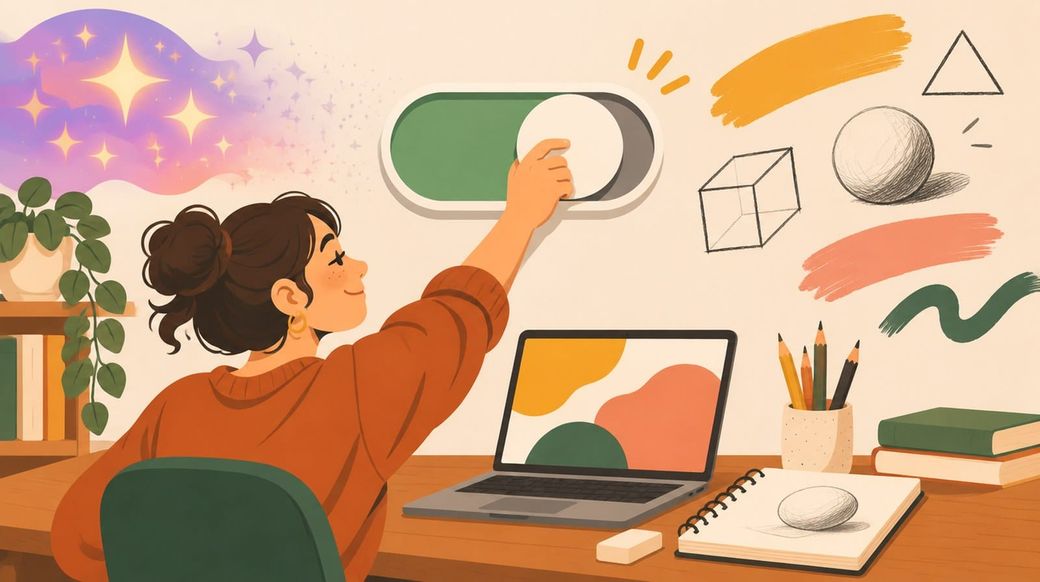
You can now turn off AI in Canva. As of Nov. 19, 2026, Canva has a switch that hides its generative AI features, plus a second setting that shows you less AI-generated art in its template library. Both are free on Canva Free and Canva Pro. But neither one controls whether Canva can learn from your designs; that's a third setting in a different menu. Here's how to find all three.
The skim
To turn off AI in Canva, go to Profile > Settings > Permissions and switch off "Enable generative AI features." To see less AI content, go to Profile > Your account > AI personalization. Background Remover and Magic Grab stay on. To stop Canva using your content to improve its AI, change your separate Privacy Settings.
What does Canva's new AI off switch do?
Canva announced two "AI Controls" in a Nov. 19 newsroom post, saying both "are available to everyone on Canva Free and Canva Pro from today, at no extra cost":
- Generative AI Control: "a new switch to enable or disable generative AI features across Canva. When it's disabled, those features are hidden across Canva, and can be enabled again at any time."
- AI-Generated Content Control: an option "to limit AI-generated content while browsing the Canva library, without changing any of your existing designs."
How do I turn off generative AI in Canva?
Steps from Canva's announcement:
- Sign in to Canva and open your Profile.
- Go to Settings, then Permissions.
- Find Enable generative AI features and switch it off.
Canva says the tools are then hidden across Canva. To bring them back, flip the same switch on. Canva describes the path for its main account settings; it hasn't published separate steps for the iPhone, iPad or Android apps, so if you don't see the menu there, use canva.com in a browser.
How do I see less AI-generated content in Canva's library?
- Open your Profile.
- Go to Your account, then AI personalization.
- Turn on the option to show less AI-generated content.
Note the wording. Canva says the setting "reduces the amount of AI-generated content appearing in search results and recommendations." It doesn't promise to remove it entirely. Canva says only "a small portion" of its library is AI-generated, such as abstract backgrounds and illustrated graphics, and those assets are tagged as AI-generated in their metadata.
Which Canva AI tools stay on?
Canva splits its AI into two groups. Here's what each switch covers, based on Canva's announcement and The Verge's list of affected tools:
| Feature | With generative AI switched off | Source |
|---|---|---|
| Background Remover | Stays on | Canva |
| Magic Grab (move an object in a photo) | Stays on | Canva |
| Magic Expand, Magic Write, Magic Design, Magic Layers, Magic Edit, Dream Lab, Canva Code, AI Shapes | Turned off | The Verge |
| Image generation in Canva's chatbot | Turned off | The Verge |
| Whether Canva can use your content to improve its AI | Not affected (separate Privacy Settings) | Canva Trust Center |
Canva says Background Remover and Magic Grab stay because they "make everyday tasks faster without generating anything new." Canva also says using them "won't trigger an AI-generated content label," so platforms that read Canva's metadata won't tag your design as AI-made just because you cut out a background.
Does turning off AI stop Canva from training on my designs?
No. That's the part neither new switch covers. The on/off switch controls which tools you see. Whether your content helps improve Canva's AI is governed by your Privacy Settings. Canva's Trust Center says it "won't use your user content to improve AI-powered features unless this is consistent with your Privacy Settings," and that you can manage this "by visiting your Privacy Settings page and updating your preferences." Canva's privacy policy places that control on "the privacy controls page under your privacy settings."
Canva splits it into two kinds of data: your content (text in your designs and the media you upload) and "general usage and activity" (things like which fonts and features you use). For the most private setup, switch off generative AI and review both data settings.
What about Canva for work or school?
If your Canva comes through an employer or school, your admin may already control this. Canva says the new controls "join the AI permissions already available to admins on Canva Business, Enterprise, Teams and Education." On training, Canva's Canva Shield page says content from Teams, Business, Enterprise and Education users "is not used to improve AI-powered features, and this cannot be turned on," and the Trust Center says Education users' privacy settings are disabled for the same reason.
Troubleshooting
- Don't see "Permissions"? Canva just launched the setting. Try canva.com in a desktop browser and make sure you're signed in to your personal account, not a team account where an admin sets AI access.
- Still seeing Background Remover or Magic Grab? That's by design; they aren't generative tools, per Canva.
- Still seeing AI art in search? Expected. The library setting reduces AI content; it doesn't block it.
- Old designs still labeled? Canva says the library setting doesn't change existing designs, so designs you built with AI-generated elements may keep their AI metadata.
What this means for you
If Canva's AI prompts get in your way, this is a two-minute fix that keeps the handiest editing tools. Just know it's a visibility switch, not a privacy switch. For other apps, see our guides to turning off AI training in Gemini and what AI assistants can see in your wallet apps. More step-by-step guides live on our How-To hub.
FAQ
Can you turn off AI in Canva?
Yes. Since Nov. 19, 2026, Canva Free and Pro users can go to Profile > Settings > Permissions and switch off "Enable generative AI features." The tools are hidden until you switch them back on.
Is Canva's AI off switch free?
Yes. Canva says both new AI Controls are available on Canva Free and Canva Pro at no extra cost.
Does Canva's AI switch turn off Background Remover?
No. Canva says Background Remover and Magic Grab stay available because they edit existing content without generating anything new, and using them doesn't add an AI-generated label.
Does turning off AI stop Canva using my designs for AI training?
No. That's controlled separately in Canva's Privacy Settings, which cover your content and your general usage data. Content from Teams, Business, Enterprise and Education accounts isn't used, according to Canva.
Sources: Canva Newsroom, "Introducing AI Controls" (Nov. 19, 2026); Canva Trust Center: Privacy, Canva Privacy Policy and Canva Shield (all read Nov. 19, 2026); list of affected tools from The Verge. Skimwire hasn't tested the new switch; steps come from Canva's documentation.