How to transfer photos from an Android phone to a Windows PC
Plug in a USB cable and choose File Transfer, or go wireless with Quick Share for Windows or Windows 11 File Explorer. Steps for all three.

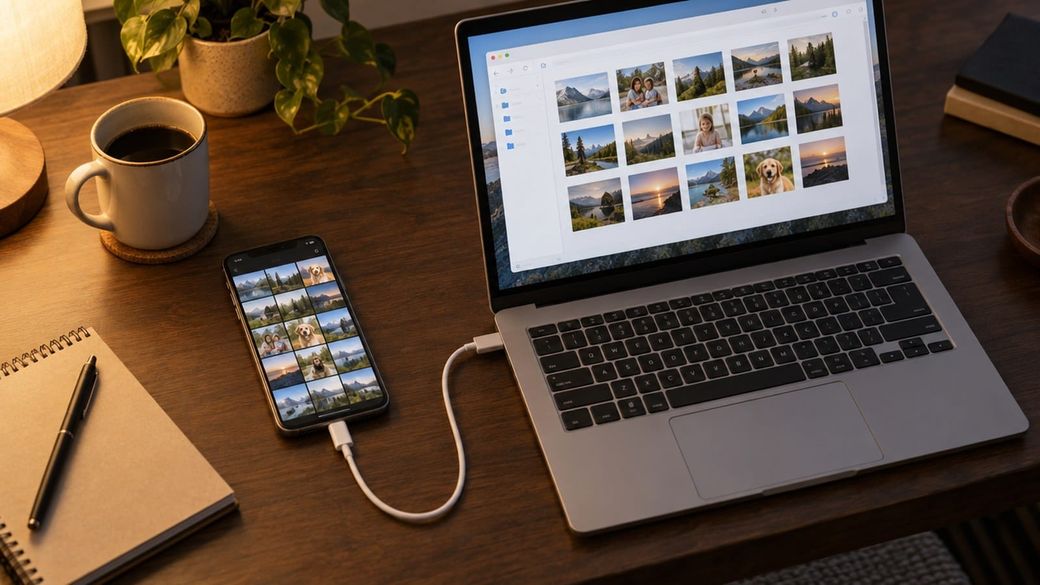
Quick answer: The simplest way is a USB cable: unlock your phone, plug it into the PC, tap the Charging this device via USB notification, choose File Transfer, then drag your photos onto the PC. For wireless transfers, use Google's Quick Share for Windows app or Windows 11's File Explorer phone integration.
Google is also starting to roll out automatic photo backup from Android to Windows through Quick Share. Here's what we know about that. Until it reaches your phone, the three methods below work today. Steps are from Google's and Microsoft's support pages.
Method 1: Use a USB cable (works on any Windows PC)
- Unlock your Android phone.
- Connect it to your computer with a USB cable.
- On the phone, tap the Charging this device via USB notification.
- Under Use USB for, select File Transfer. A file transfer window opens on your computer.
- Open your phone's storage, go to the DCIM folder (where Android cameras usually save photos), and drag the photos you want to a folder on your PC.
- When you're done, eject your phone from Windows, then unplug the cable.
Prefer an import tool? With the phone connected and set to File Transfer, open the Windows Photos app from Start, select Import, choose your phone, and follow the prompts to pick photos and a destination folder, per Microsoft.
Method 2: Send wirelessly with Quick Share for Windows
Good for a handful of photos. You need a 64-bit PC running Windows 10 or later (ARM PCs need Windows 11) and a phone on Android 6.0 or later, per Google. Samsung PCs use Samsung's own Quick Share app instead.
- Download Quick Share for Windows from Google's Android website, install it and open it. You don't need admin rights.
- Sign in with your Google Account. In the app's Settings, set Device visibility to Your devices (or Everyone) so your phone can find the PC.
- On your phone, open the photo or select several in your gallery app, then tap Share > Quick Share.
- Tap your PC's name. If both devices use the same Google Account, the PC accepts the transfer automatically.
- Find the files on your PC in Downloads > Quick Share.
Method 3: Browse your phone in Windows 11 File Explorer
Windows 11 can show your Android phone in File Explorer through the Link to Windows app. Per Microsoft, you need Android 11 or later and Link to Windows version 1.24072.258.0 or later.
- On your PC, go to Settings > Bluetooth & devices > Mobile devices and select Manage devices.
- Pair your phone if it isn't listed, then turn on Show mobile device in File Explorer for it.
- Open File Explorer and select your phone in the left pane.
- Open the Camera folder and copy the photos you want to a folder on your PC.
Be careful: files shown there live on your phone. Deleting one in File Explorer deletes it from your phone, though Microsoft says it goes to a "Recycle bin – Connected device" folder for 30 days.
Troubleshooting
- The PC doesn't see your phone over USB. Unlock the phone and check you picked File Transfer, not charging only. Try another cable or port: Google notes that some cables only charge and don't carry data.
- Quick Share can't find the PC. Turn on Bluetooth and Wi-Fi on both devices, keep them within about 16 feet (5 meters), and connect them to the same Wi-Fi network. Work and school networks sometimes block transfers, so Google suggests trying your phone's hotspot. Toggling Airplane mode on and off can also help.
- The phone doesn't appear in File Explorer. Make sure Link to Windows is updated on the phone and that the File Explorer toggle is on under Manage devices.
FAQ
Which method is fastest for hundreds of photos?
A USB cable. It doesn't depend on Wi-Fi or Bluetooth, and you can drag whole folders at once.
Will Android back up photos to my PC automatically?
Not yet for most people. Google's November release notes list automatic Quick Share backup from Android to Windows, but it's rolling out gradually. Keep Quick Share for Windows updated so you're ready when it arrives.
Does copying photos to my PC remove them from my phone?
No. Copying leaves the originals on your phone. Only deleting or moving them does, including deleting from File Explorer in Method 3.
Sources: Google Android Help: transfer files by USB, Google Android Help: Quick Share for Windows, Microsoft Support: import photos and Microsoft Support: your phone in File Explorer.