How to make text and icons bigger on iPhone (including iPhone Duo)
Go to Settings > Appearance > Text Size for bigger text, or Display Zoom to enlarge icons too. Plus Bold Text, Larger Text, Zoom and iPhone Duo notes.

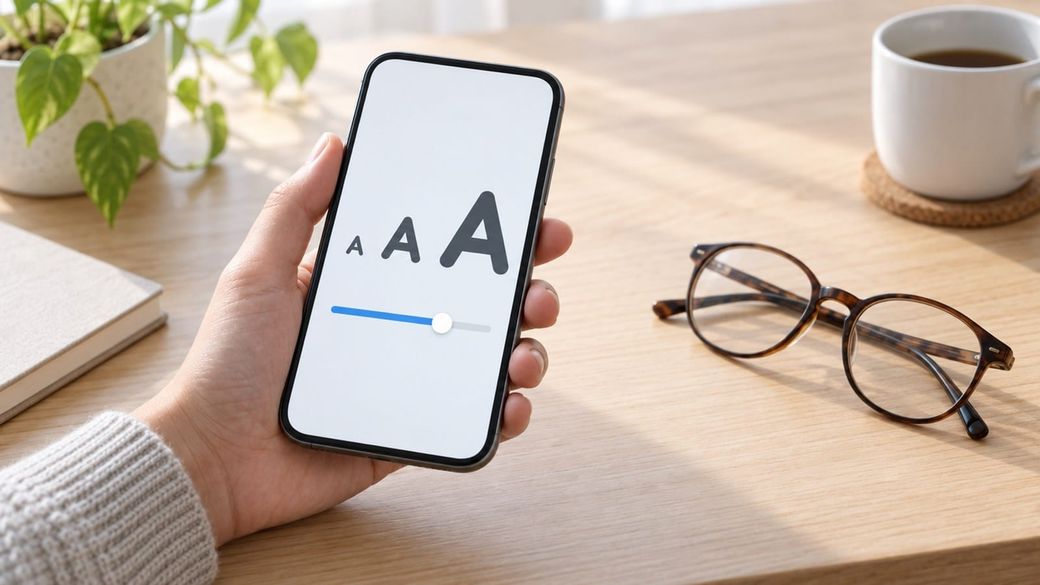
Quick answer: To make text bigger, go to Settings > Appearance > Text Size and drag the slider. To make everything bigger, including icons and buttons, go to Settings > Appearance > Display Zoom, tap Larger Text, then confirm with Use Zoomed.
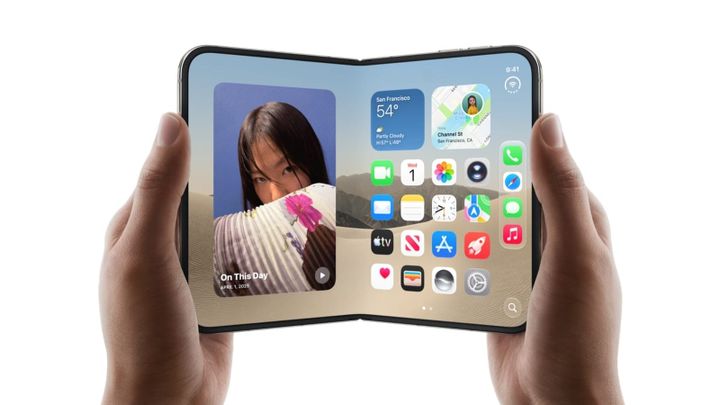
One catch right now: on iPhone Duo, the Display Zoom option is missing from Settings, so the size you chose during setup is reported to be locked in. Here's what we know about that. Everything else in this guide works on Duo. These steps are from Apple's iOS 27 user guide.
Option 1: Make text bigger (any iPhone)
- Open the Settings app.
- Tap Appearance, then tap Text Size.
- Drag the slider right to make text bigger, or left to make it smaller.
This sets one preferred text size for all supported apps, including Calendar, Mail, Messages, Notes and Settings. App icons and buttons stay the same size.
Option 2: Make text bold
- Open Settings and tap Appearance.
- Turn on Bold Text.
Bold text is often easier to read than simply bigger text, and it pairs well with Option 1.
Option 3: Make everything bigger with Display Zoom
Display Zoom magnifies the whole interface, so icons, buttons and text all grow. You'll fit less on screen.
- Open Settings and tap Appearance.
- Tap Display Zoom, then tap Larger Text.
- Tap the confirm button, then tap Use Zoomed.
Option 4: Go even bigger with Larger Accessibility Sizes
If the Text Size slider tops out too soon:
- Open Settings and tap Accessibility.
- Tap Display & Text Size, then tap Larger Text.
- Turn on Larger Accessibility Sizes, then drag the slider.
The same Display & Text Size screen also has options to increase contrast and make other adjustments that make the screen easier to read.
Option 5: Change text size from Control Center
Handy when one app's text is hard to read and you don't want to dig through Settings:
- Open Control Center.
- Adjust the Text Size slider.
- Don't see it? Tap the add button in the top-left corner, tap Add a Control, then choose Text Size.
Option 6: Magnify the screen with Zoom
Zoom works like a magnifying glass for anything on screen, either the full screen or a movable lens.
- Go to Settings > Accessibility > Zoom and turn on Zoom.
- Choose Zoom Region: Full Screen Zoom or Window Zoom.
- Double-tap the screen with three fingers to zoom in or out. In Full Screen Zoom, drag with three fingers to move around.
Notes for iPhone Duo
- Display Zoom: MacRumors and The Mac Observer report the option isn't in Settings on Duo, and one owner says Apple Support told them the only way to change it is to erase the phone and set it up again. Apple hasn't commented. Try Options 1, 2, 4 and 5 first.
- Zoom on two screens: Apple says Zoom applies to one display at a time on iPhone Duo. When you open or close the phone, double-tap with three fingers to resume Zoom on the screen you're using.
Troubleshooting
- Text got bigger in some apps but not others. The Text Size setting applies to apps that support it. Some third-party apps may not follow it or may have their own text-size setting, so check the app's settings.
- Layouts look cramped or cut off. Very large text sizes can crowd some layouts. Step the slider back one notch, or use Bold Text instead.
- The screen is suddenly magnified and won't scroll normally. Zoom is probably on. Double-tap with three fingers to zoom out, or turn it off in Settings > Accessibility > Zoom.
FAQ
What's the difference between Text Size and Display Zoom?
Text Size only changes text in apps that support it. Display Zoom enlarges the whole interface, including app icons, buttons and controls.
Can I make text bigger without making icons bigger?
Yes. Text Size (Option 1) and Larger Text (Option 4) change text only. Display Zoom is the one that enlarges icons and controls too.
Can I change text size for just one app?
Yes. Apple's user guide has a section on customizing visual accessibility settings for specific apps, and the Control Center Text Size slider changes text while you're in an app.
Sources: Apple Support, Adjust iPhone display and text settings, Make text easier to read on iPhone and Zoom in on the iPhone screen; MacRumors.